
Messages
Each activity has its own Messages tab: a conversation between your team and the iiCME Accreditation Team about that activity.
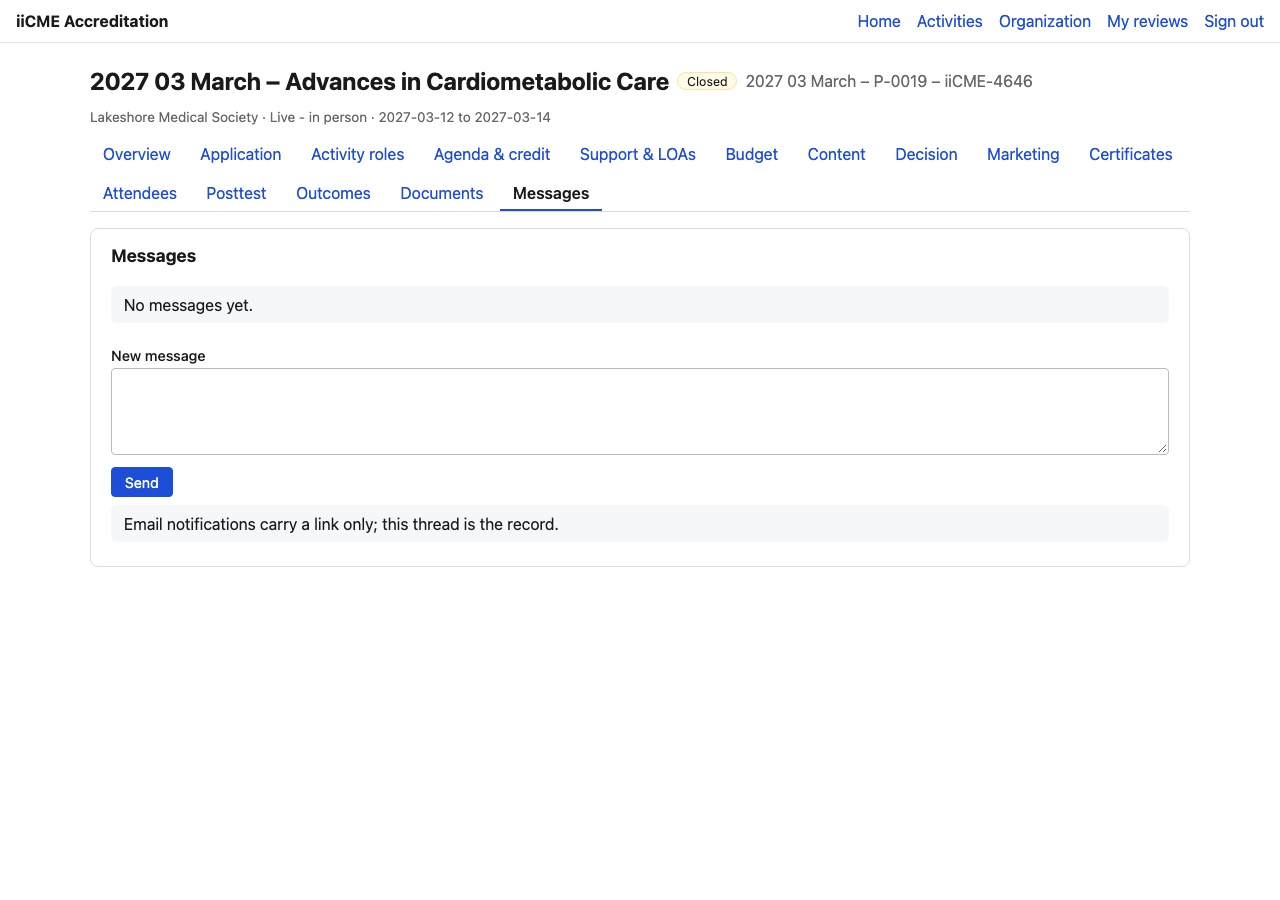
- Type your message under New message.
- Click Send.
Email notifications carry a link only, and the thread in the portal is the record. Reply in the portal, not by email, so that the conversation stays with the activity.
Documents
The Documents tab is the activity’s file cabinet. Every file is kept in one of 14 numbered folders: Activity Planning Documents, Disclosure Forms & Lists, Faculty Bios & CVs, Agenda & Abstracts, Activity Content, CME Marketing Documentation, Accreditation Documents, Certificates, MOC Documentation, Posttest & Evaluation, Grant LOAs, Budget & Reconciliation, Outcomes & Reporting, and PIP Backup Documents. The number next to a folder is how many files it holds.
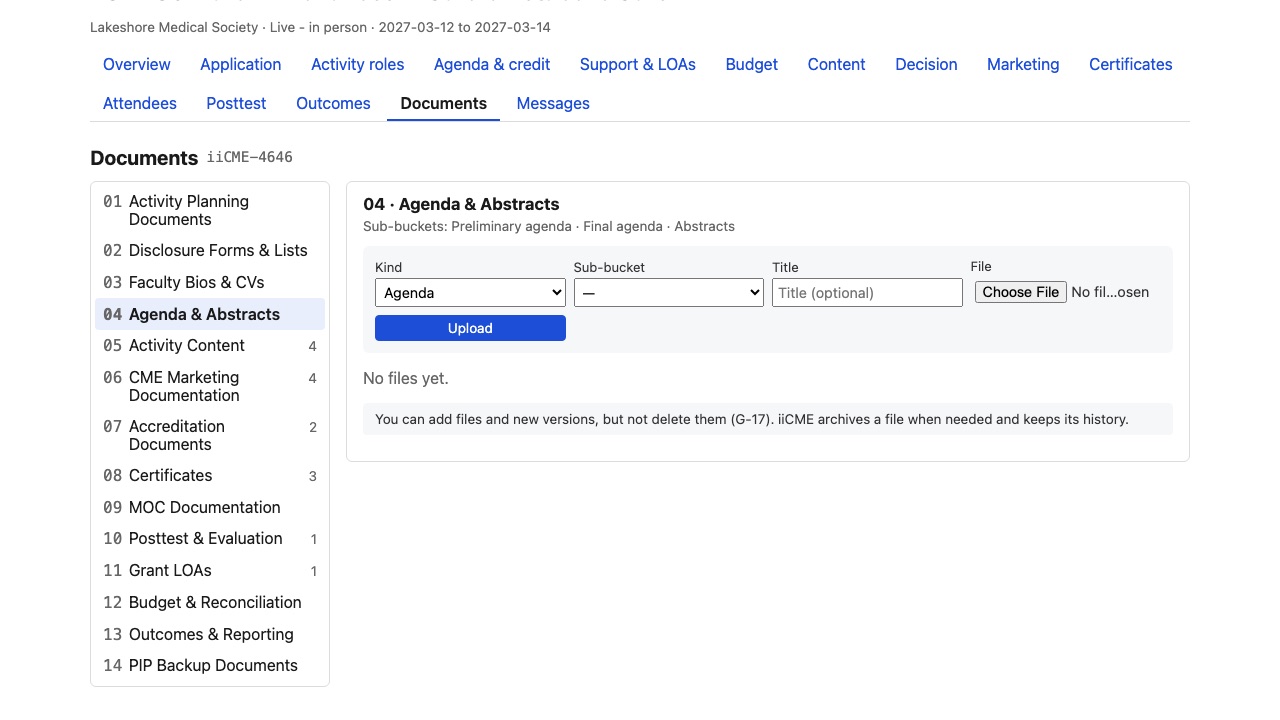
Files you upload on the other tabs (agenda, content, marketing, budget) are filed in the right folder automatically. To add any other file:
- Click the folder.
- Choose the Kind and, if the folder has them, the Sub-bucket (for example Preliminary agenda, Final agenda or Abstracts).
- Add a Title (optional), choose the file and click Upload.
You can add files and new versions, but not delete them. iiCME archives a file when needed and keeps its history. Released accreditation documents and signed forms never change: any change is made as a new version.
Need help?
Send a message from the activity’s Messages tab, or email the iiCME Accreditation Team at client.support@iicme.com. For the full series, see Accreditation Portal guide: start here.
Screenshots show a fictional demonstration organization, “Lakeshore Medical Society.” Your portal shows your own organization and activities.