
The iiCME Accreditation Portal is where educational partners work with iiCME on jointly provided CME activities: joining iiCME, signing the Joint Providership Agreement, planning each activity, collecting disclosures, getting the accreditation decision and closing the file after the activity.
Everything for an activity lives in the portal. Emails from the portal are alerts with a link back to it. The portal, not your inbox, is the record.
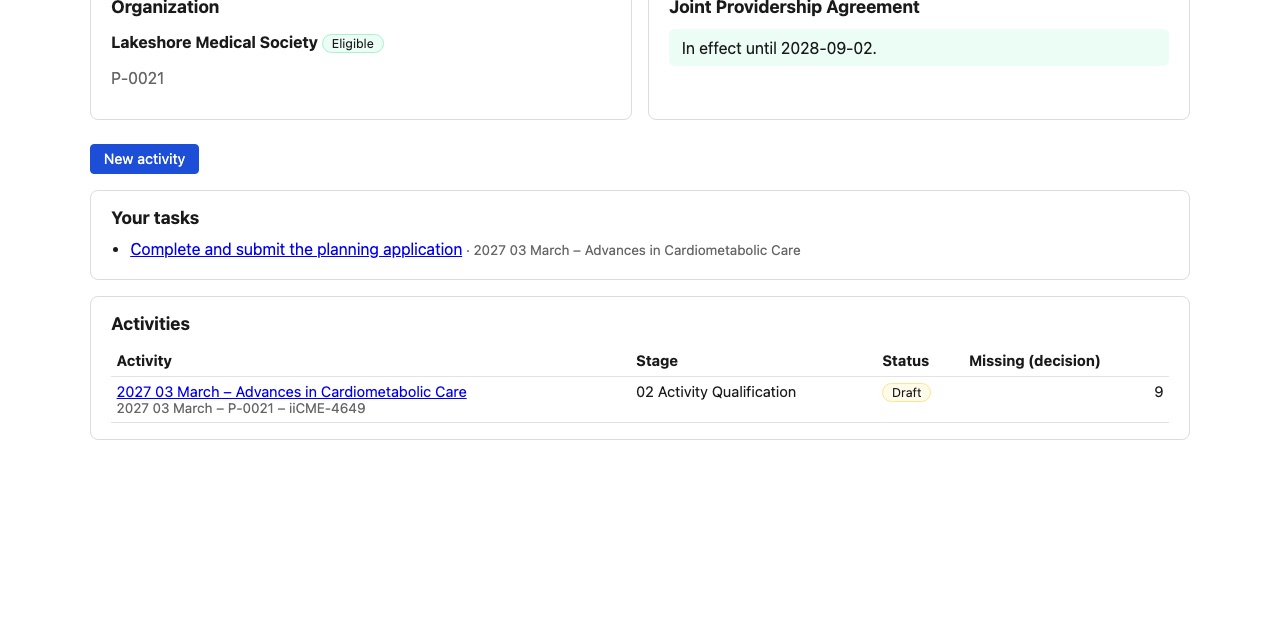
Who uses the portal
- Partner administrators manage the organization profile, the team and the agreement, and can do everything a coordinator can.
- Partner coordinators run activities: the planning application, the roster of people in control of content, the agenda, content, support, budget and marketing.
- Faculty, planners and reviewers receive a personal link by email to complete their disclosure. They do not need a portal account for that.
The guides, in order
Getting set up
- How to join iiCME as an educational partner
- How to review and sign your Joint Providership Agreement
- How to manage your organization profile and team
- How to use your dashboard and start a new activity
Planning an activity
- How to read the activity Overview and requirements checklist
- Planning application, part 1: Sections 1 to 3
- Planning application, part 2: Sections 4 to 6
- Planning application, part 3: Sections 7 to 9 and submitting
- How to list activity roles and send disclosure invitations
- For faculty, planners and reviewers: how to complete your disclosure
- How to enter your agenda and see your credit
- How to declare commercial support and track Letters of Agreement
- How to complete and submit your activity budget
- How to upload content and respond to review findings
Approval and launch
- How to find your accreditation decision and documents
- How to submit marketing for review and share the accreditation statements
- How learners claim credit and get certificates
After the activity
- How to upload your final attendee list
- How to complete the outcomes report and close out the activity
- How to use Messages and Documents in an activity
Navigating the portal
The links at the top right of every page are Home (your dashboard), Activities (every activity for your organization), Organization (profile and team) and Sign out. Inside an activity, the tabs across the top hold each part of the work: Overview, Application, Activity roles, Agenda & credit, Support & LOAs, Budget, Content, Decision, Marketing, Certificates, Attendees, Posttest, Outcomes, Documents and Messages.
Some tabs fill in only later. For example, Decision has nothing to show until iiCME records the accreditation decision, and Attendees is used after the activity.
Need help?
Send a message from the activity’s Messages tab, or email the iiCME Accreditation Team at client.support@iicme.com. For the full series, see Accreditation Portal guide: start here.
Screenshots show a fictional demonstration organization, “Lakeshore Medical Society.” Your portal shows your own organization and activities.