
Click Organization at the top right of any portal page. The page has two parts: the organization profile and your team.
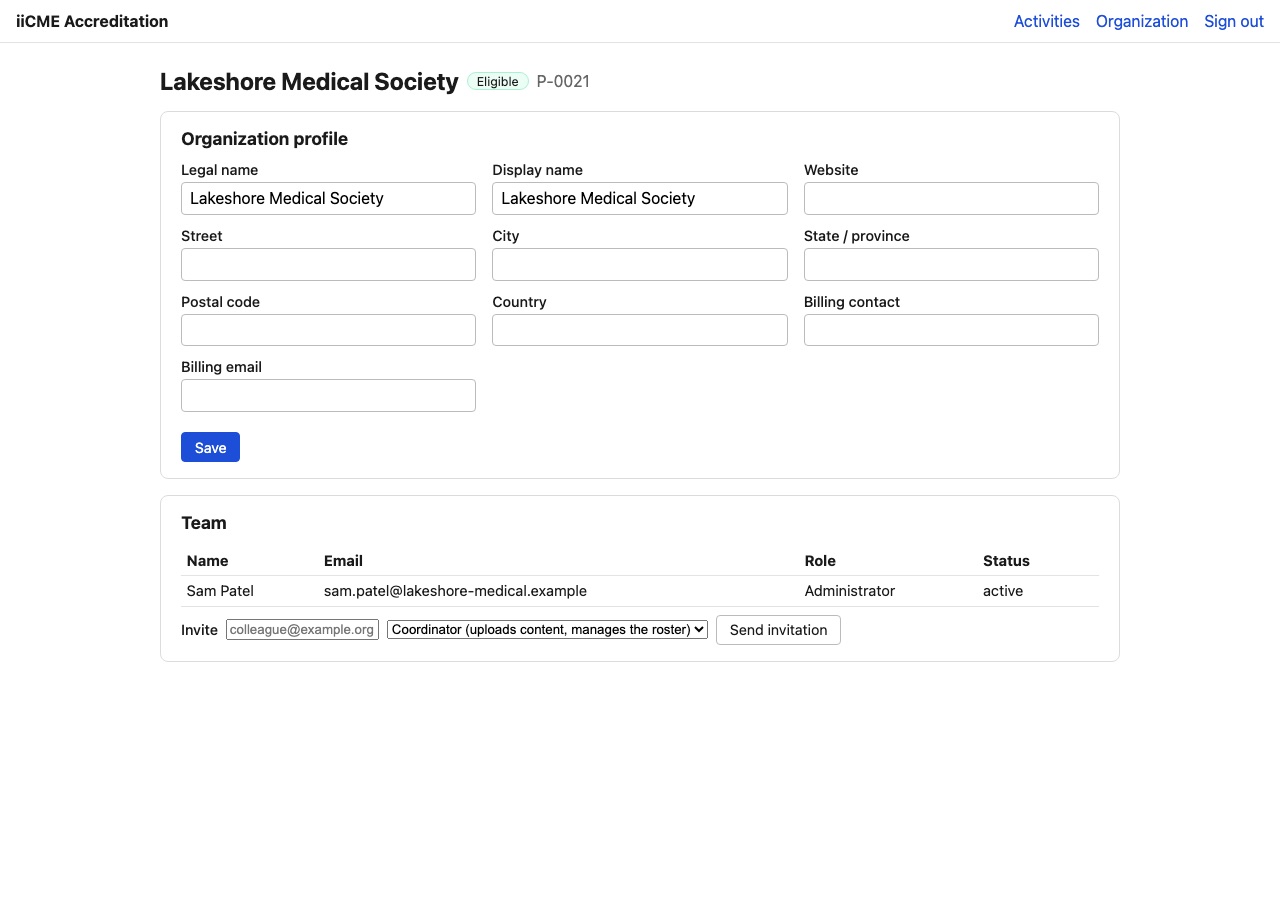
Organization profile
Keep these fields current. iiCME uses them in agreements, statements, certificates and invoices.
- Legal name: as it appears in your agreement and in Letters of Agreement
- Display name: the name printed on statements and certificates
- Website, street, city, state / province, postal code, country
- Billing contact and billing email: where iiCME sends invoices
Click Save after making changes.
Your team
The team table lists everyone with portal access for your organization: name, email, role and status.
Roles
- Administrator: manages the profile, the team and the agreement, and can do everything a coordinator does.
- Coordinator: runs activities: uploads content and manages the roster of people in control of content.
Invite a team member
- Under Invite, enter the person’s email address.
- Choose Coordinator or Administrator.
- Click Send invitation. The page confirms Invitation sent. The person receives an email with a link to set up their account.
Your organization only sees its own activities, people and documents.
Need help?
Send a message from the activity’s Messages tab, or email the iiCME Accreditation Team at client.support@iicme.com. For the full series, see Accreditation Portal guide: start here.
Screenshots show a fictional demonstration organization, “Lakeshore Medical Society.” Your portal shows your own organization and activities.