
Click an activity from your dashboard or the Activities page. It opens on the Overview tab.
The header
The top of every activity page shows the activity’s title, its status (for example Draft or Approved), its label and iiCME number, your organization, the format and the dates. The tabs underneath lead to each part of the work.
Stage bar
The numbered bar (01 to 13) shows how far the activity has progressed, from qualification through planning, review, approval, delivery and closeout. Below it, the current stage is named, with whether the activity is cleared for delivery yet.
What to do next
This box tells you the next action that is waiting on your organization, with a link to it. When nothing is waiting, it says Nothing waiting on you right now.
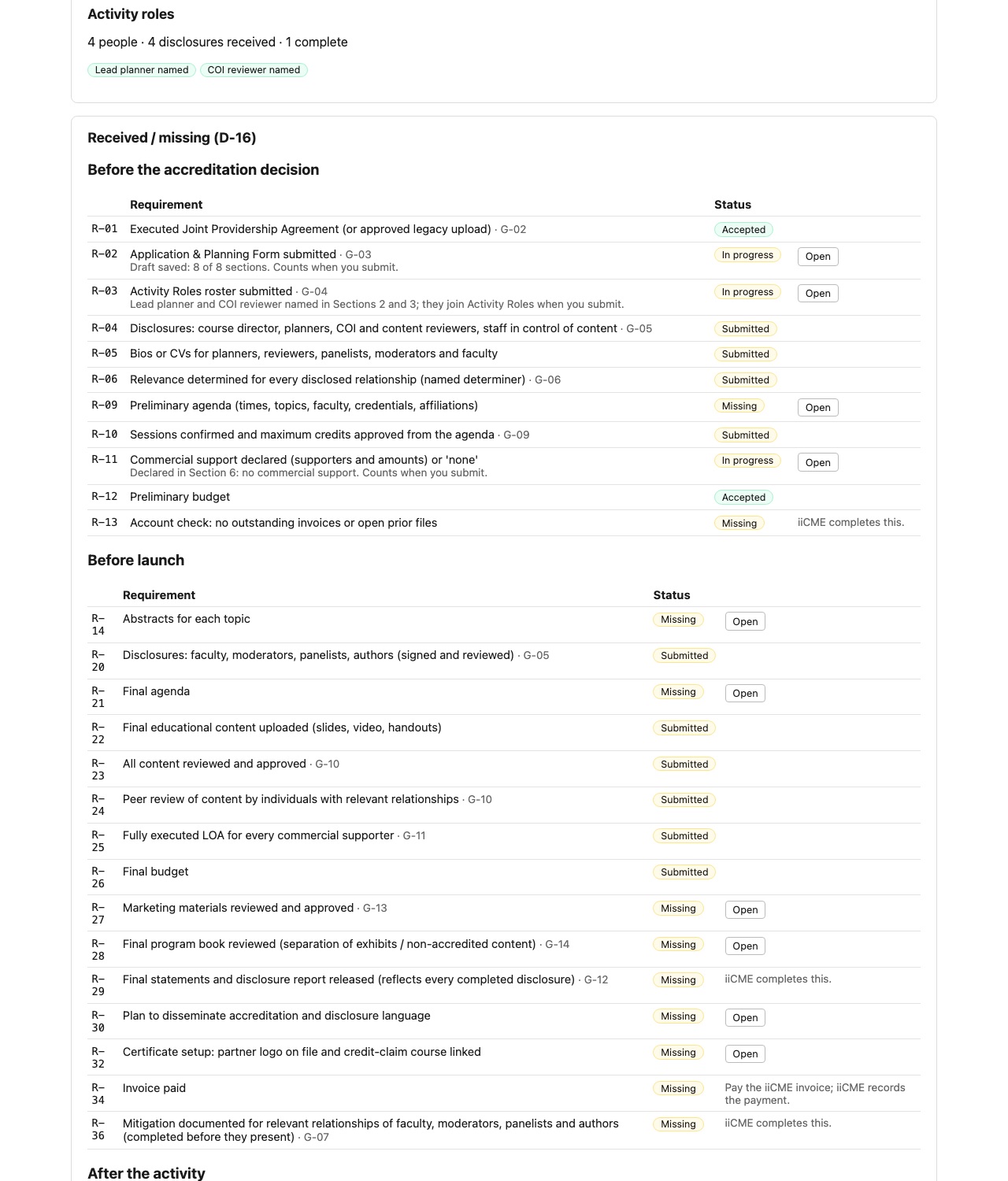
Activity roles
A short summary of the roster: how many people are listed, how many disclosures are received and complete, and whether a lead planner and a COI reviewer are named.
Received / missing checklist
This is the full list of what the accreditation file needs, grouped by when it is needed:
- Before the accreditation decision: for example the executed agreement, the submitted application, the roster, disclosures and bios, the preliminary agenda, commercial support declared (or “none”), and the preliminary budget.
- Before launch: for example abstracts, the final agenda, final content (reviewed and approved), fully executed Letters of Agreement for every commercial supporter, the final budget, approved marketing, and the plan for giving learners the accreditation statements.
- After the activity: for example proof the statements reached learners, the final attendee list, the final slide decks, final marketing materials, the evaluation summary and the budget reconciliation.
- Closeout: items iiCME completes, such as certificates and PARS reporting.
Each row shows a status: Missing, Submitted (you provided it and iiCME has not reviewed it yet), Accepted, Waived or Not applicable. Rows with an Open link take you to the page where you provide that item. The status updates automatically when you upload or submit.
Need help?
Send a message from the activity’s Messages tab, or email the iiCME Accreditation Team at client.support@iicme.com. For the full series, see Accreditation Portal guide: start here.
Screenshots show a fictional demonstration organization, “Lakeshore Medical Society.” Your portal shows your own organization and activities.