
Section 7: Joint Accreditation & IPCE
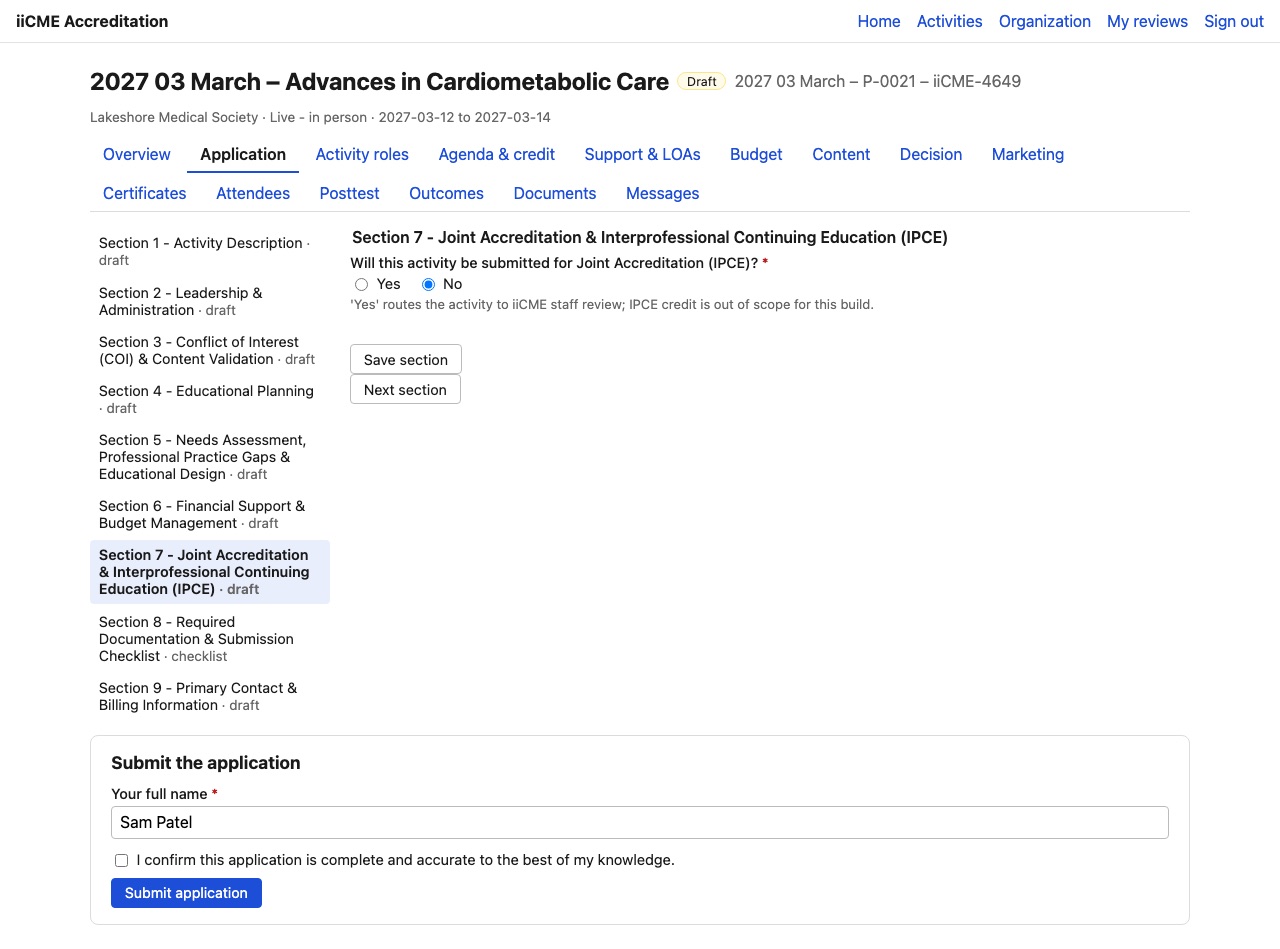
Will this activity be submitted for Joint Accreditation (IPCE)? Answering Yes sends the activity to iiCME staff for a separate review.
Section 8: Required Documentation & Submission Checklist
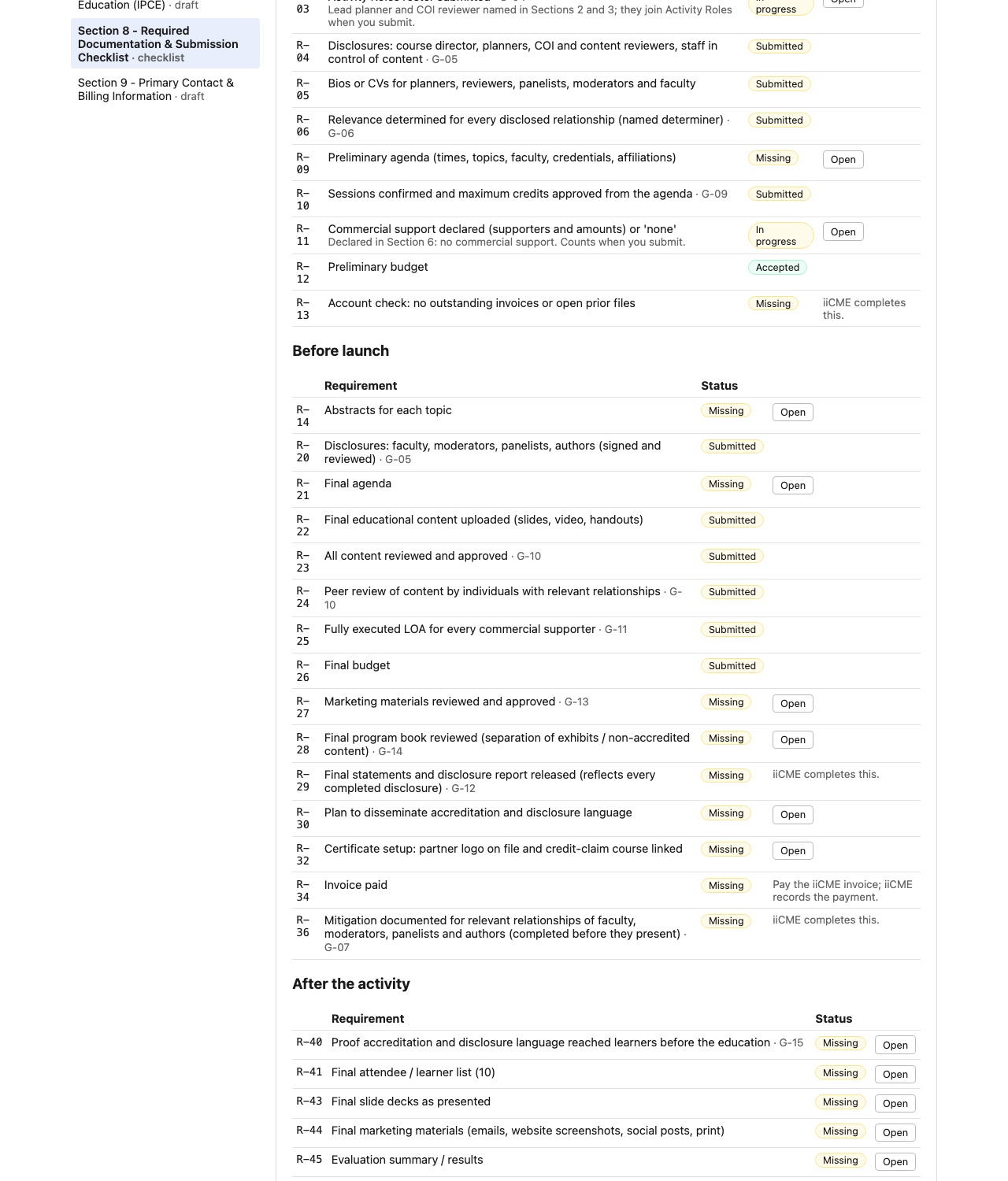
There is nothing to type here. Section 8 shows the live checklist of everything the file needs: before the decision, before launch and after the activity. You upload each item on its own tab in the activity, and its status updates here automatically.
Section 9: Primary Contact & Billing Information
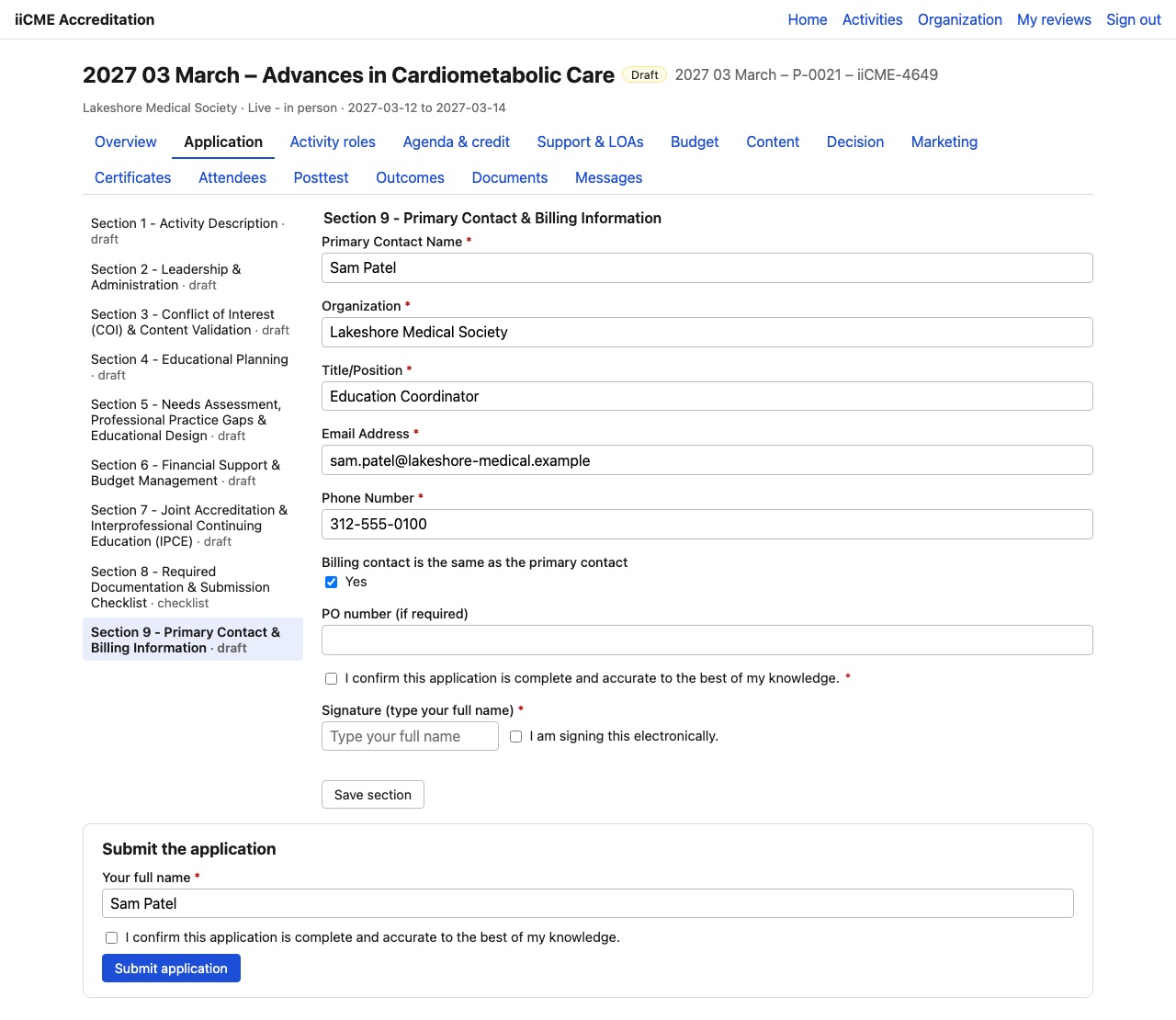
- Primary contact name, organization, title / position, email and phone
- Is the billing contact the same as the primary contact? If not, give the billing contact’s name and email.
- PO number, if your organization requires one
- Confirm the application is complete and accurate, then type your full name as your signature.
Submit the application
The Submit the application box sits under every section. When all required fields are complete:
- Type your full name.
- Tick I confirm this application is complete and accurate to the best of my knowledge.
- Click Submit application.
If anything is missing, the portal lists the sections and fields to fix. You also need a lead planner and a COI reviewer on the Activity roles roster before you can submit.
After you submit
The status changes to Submitted, then to In review when iiCME starts reviewing. If iiCME needs changes, the status becomes Corrections requested. You receive an email, and only the sections iiCME reopened can be edited. Make the corrections and submit again. Each submission is kept as a numbered revision.
Need help?
Send a message from the activity’s Messages tab, or email the iiCME Accreditation Team at client.support@iicme.com. For the full series, see Accreditation Portal guide: start here.
Screenshots show a fictional demonstration organization, “Lakeshore Medical Society.” Your portal shows your own organization and activities.