
Your dashboard (Home) is the first page you see after signing in.
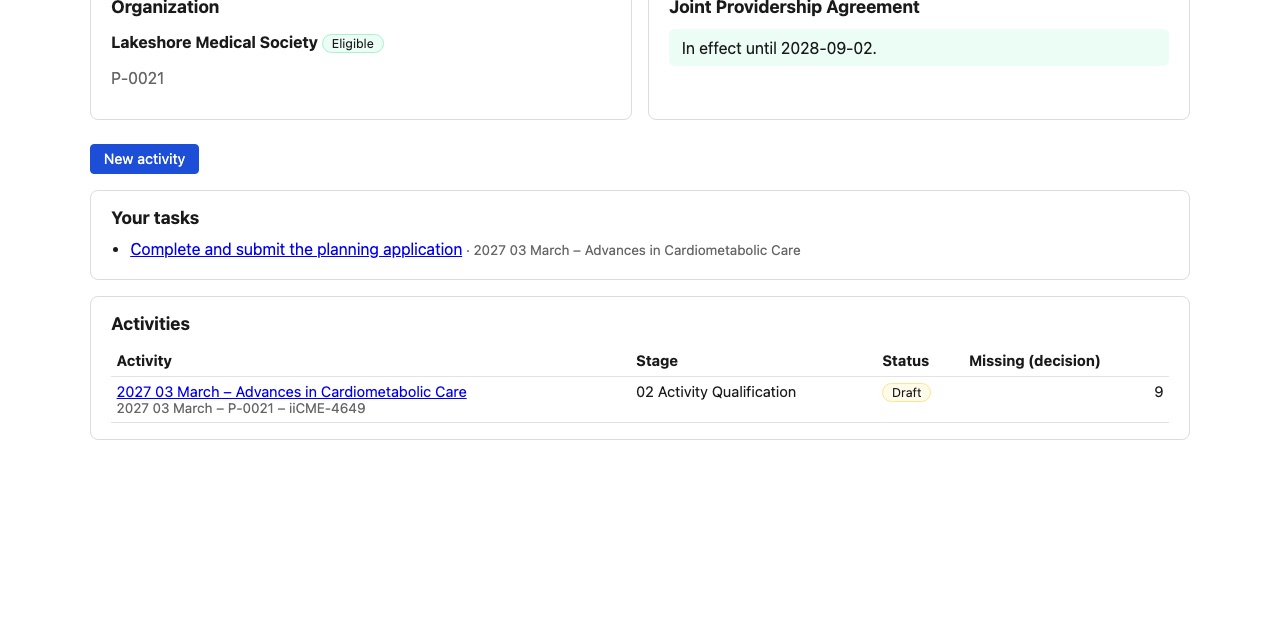
What the dashboard shows
- Organization: your organization’s name, its partner code (for example P-0215) and its eligibility status.
- Joint Providership Agreement: whether your agreement is waiting for your signature, waiting for iiCME, or in effect (with its end date).
- Your tasks: everything currently waiting on you, across all activities. Each task links straight to the page where you do it, for example Complete and submit the planning application.
- Activities: each activity with its stage, its status (for example Draft, Submitted, In review, Approved) and the number of items still missing before the accreditation decision.
Start a new activity
- Click New activity.
- Fill in Activity basics:
- Working title: a placeholder is fine. The official name comes from the Activity Title in the planning application.
- Format: live in person, live virtual / webinar, hybrid, enduring, live and enduring, regularly scheduled series (RSS), blended or other.
- Anticipated start / launch date and anticipated end date
- Estimated credits
- Click Create activity.
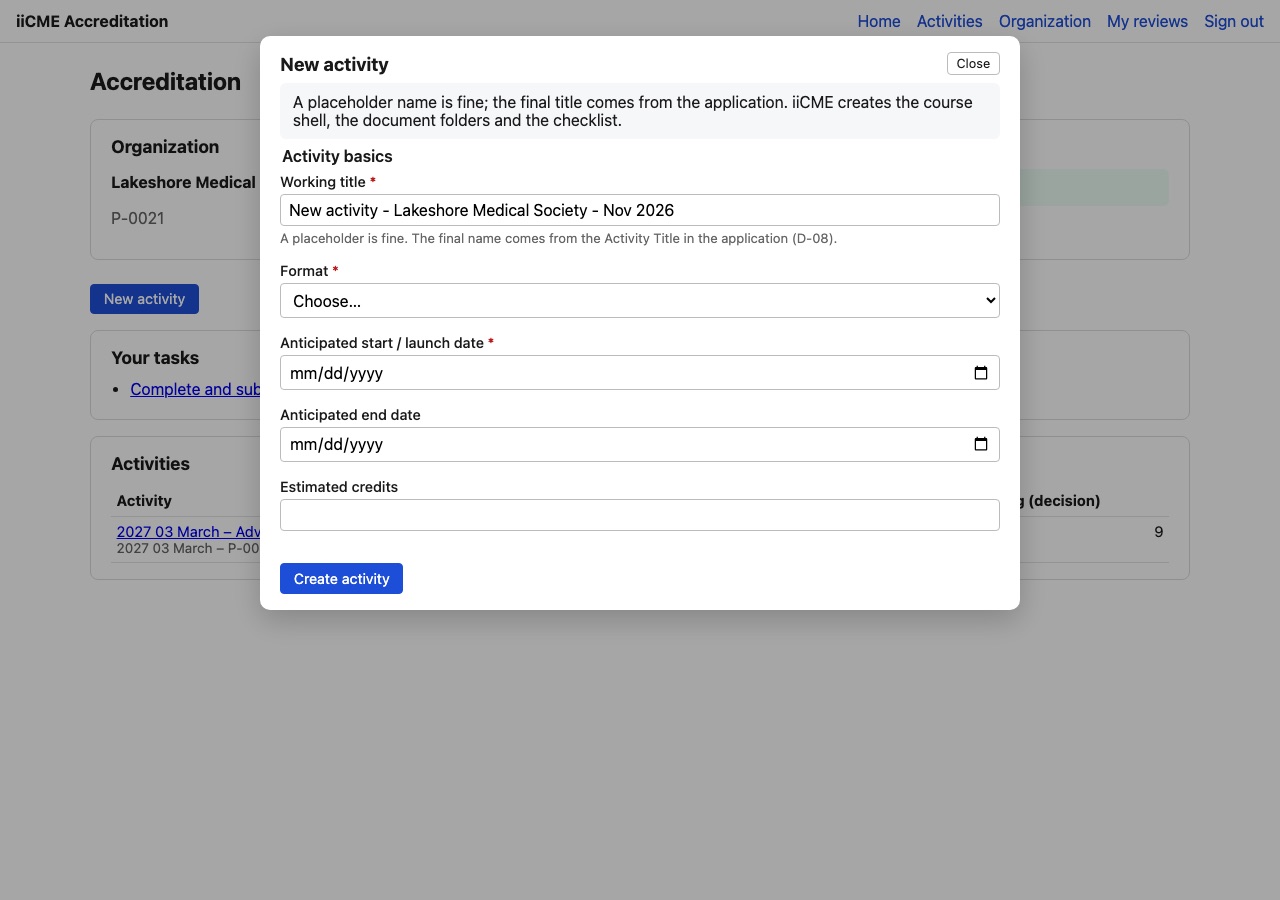
iiCME creates the activity, its document folders and its requirements checklist. The activity gets a label such as “2027 03 March – P-0215 – iiCME-4128” (year, month, your partner code and the iiCME activity number). Use that number when you contact iiCME about the activity.
Next: open the activity and work through its tabs, starting with How to read the activity Overview and requirements checklist.
Need help?
Send a message from the activity’s Messages tab, or email the iiCME Accreditation Team at client.support@iicme.com. For the full series, see Accreditation Portal guide: start here.
Screenshots show a fictional demonstration organization, “Lakeshore Medical Society.” Your portal shows your own organization and activities.